
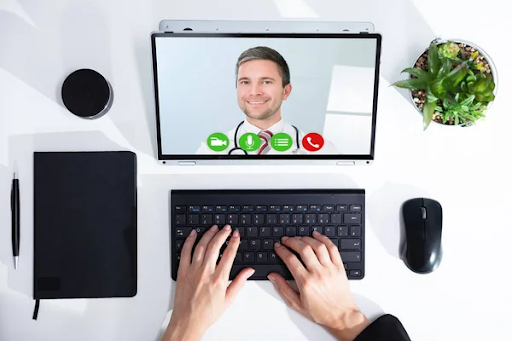
For many, the home office is no longer a temporary solution. It has become a full-fledged workspace where negotiations, financial transactions, daily team interaction, and document sharing take place. If you work on a Mac, you already have a strong security foundation. This is thanks to macOS architecture, system updates, Gatekeeper, XProtect, and privacy tools. But even a reliable platform needs to be configured correctly.
The biggest risks in a home office are usually not related to the computer itself, but to the network, weak passwords, phishing emails or unsecured video calls. Also, improper file access or the use of outdated software.
That is why secure work with VoIP, video conferencing, and corporate data requires a systematic approach.
Basic macOS Security. Start Here
- Make sure your system is updated regularly. Apple releases security patches on an ongoing basis. The latest ones address known vulnerabilities.
- Enable automatic updates for macOS and installed apps. This is one of the easiest ways to reduce the risk of compromise.
- Check your system login settings. Namely, use a strong password, Touch ID, automatic screen lock after inactivity, and a password requirement after waking the device.
After completing these basic steps, be sure to add an extra layer of protection. You won’t go wrong by adding a practical measure to your work from home security tips, such as an antivirus app for Mac. This standalone solution complements Apple’s built-in security features, offering real-time protection, malware scanning, a VPN, and Network Inspector. You can also check out tips on security settings and tools for safer daily work on a Mac. All of this is really useful if you want to spot risks before an incident happens.
FileVault and backups. Enable them
If your device falls into the wrong hands, accessing your data without a password will be much more difficult. After all, FileVault encrypts your Mac’s drive. For a business laptop, this is standard practice, not an option.
Backing up is just as important. Use Time Machine with an external drive or a trusted cloud solution. Security isn’t just about preventing attacks. It’s also about the ability to quickly recover after a failure, user error, or ransomware attack.
Secure Your Home Network and Wi-Fi
- Change your router’s default password.
- Update its firmware.
- Use special encryption. WPA2 or WPA3. Older security standards no longer address modern risks.
Set up a guest network for smart devices, TVs, or visitors. Thus, the fewer devices on your main network, the lower the risk of a side-channel attack if one of them gets infected.
When to Use a VPN?
It is much useful when you work on public or shared networks. Encrypting traffic between your device and the VPN server makes it harder for data to be intercepted. However, a VPN does not replace all other security measures. In other words, it won’t protect you from a phishing site or a weak password. So, consider it as part of a wider strategy, not a one-size-fits-all solution.
Secure Video Conferences and VoIP Calls
VoIP and video conferencing became the backbone of modern work. Nevertheless, they often introduce new security risks:
- Accidental invitations to unauthorized individuals;
- Leaked recordings;
- Weak access controls for meeting rooms;
- Phishing links for meetings.
Choose services that support 2-factor authentication, encryption and administrative access settings. Also check how the platform stores recordings, chat history, and files. Especially if your team actively uses these features.
Microphone, camera, and privacy
macOS lets you control which apps have access to your camera, microphone, screen, and files. Review these permissions in Privacy & Security on a regular basis. If an app is no longer in use, revoke its access or remove it entirely.
Best practices for every meeting
Use passwords for:
- Meetings,
- Waiting rooms,
- Screen sharing restrictions,
- Participant control.
Do not post meeting links in public channels unnecessarily.
Before screen sharing:
- Close unneeded tabs;
- Turn off pop-up notifications;
- Prepare a separate workspace.
These small details often save you from awkward and risky situations.
Accounts. Passwords. Remote Access Security
Weak and reused passwords remain among the most common causes of security incidents. Use a password manager. Create unique combinations for each service. Be sure to enable MFA for critical services.
Pay special attention to remote access security. If you connect to corporate resources via SSH, Remote Desktop, or VPN, or administer servers, access must be:
- Restricted to verified users,
- Protected by MFA and event logging.
Separate personal and work
Have a separate user profile on your Mac for work, or even a separate device if your company requires it.
Do not use work passwords on personal services. A compromise of a third-party site should not open a path to the corporate infrastructure.
Data Protection in Daily Operations
Data protection involves routine work activities.
- Send files via approved services.
- Check folder access permissions.
- Regularly delete unnecessary copies of documents.
For effective business data protection, know where documents are stored and who has access to them. Also, know how quickly you can revoke that access after an employee’s role changes or a project ends.
Avoid phishing
Most attacks begin by deceiving the user. Therefore, check:
- the sender’s address,
- the link’s domain,
- the message’s tone.
Urgency, pressure, and requests to “log in immediately” are typical red flags.
If the email concerns finances, access, or changes to account details, verify the request through an alternative communication channel.
A common myth
It is that Macs aren’t attacked. In reality, macOS has strong protection, but Mac users also face adware, infostealers, phishing, and malicious installers. The question isn’t whether threats exist, but how well prepared you are for them.
That’s why Mac virus protection should be considered an additional layer of security alongside updates, FileVault, MFA, and safe habits.
The Bottom Line
A secure home office on a Mac doesn’t require complex infrastructure or technical expertise. The best results come from a combination of simple but consistent solutions:
- An up-to-date system,
- An encrypted drive,
- A reliable network,
- Access control,
- Secure video calls,
- Backups,
- Staying alert to phishing scams.
VoIP and video conferencing are now part of business-critical processes. You should therefore treat them just as seriously as financial systems or corporate email. And don’t wait for an incident to happen. Security measures implemented today are almost always cheaper and more effective than reacting after data loss or compromised access.
Read More : What Is Call Whisper? How It Works & Key Benefits for Businesses