

Apps, as well as VoIP software, put a lot of pressure on your Mac. ZoiPer, Nextiva, and Dialpad all require that your processor, memory, and storage perform in harmony. When hidden junk files pile up, your Mac can’t keep up.
During a VoIP call, your Mac handles real-time video encoding/decoding, audio processing, screen sharing, packet transmission, and managing background apps at once. If system caches, log files, and app leftovers are consuming resources, something has to give, and that’s usually the quality of your call. Your VoIP calls might experience lags, choppy audio or connection drops.
The upside is that once you clear the right files, your VoIP call quality should improve dramatically. Here are the standard hidden files to start with, along with how to handle them.
1. Clear Video Conferencing Cache Files
Your Mac saves temporary cache files to help things run smoother. For example, common call apps like Zoom Phone, GoTo Connect, and Grasshopper save thumbnails, logs, temp footage, and rendering data. After a while, this becomes multiple gigabytes of dead weight.
Here’s how to clear video conferencing cache files on Mac:
1. Open Finder and Press Cmd+Shift+G to go to Folder.
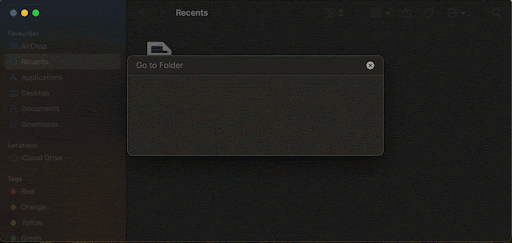
2. Type ~/Library/Caches.
From here, locate folders similar to the app names as com.zoom.xos, com.microsoft.teams, and any browser cache folders tied to Meet. Delete the folder contents and repeat for /Library/Caches.
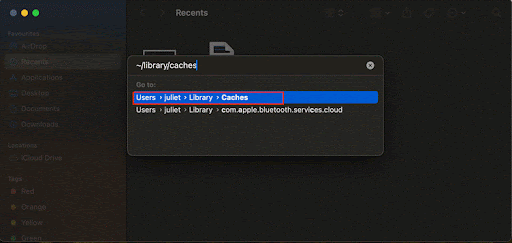
Follow up by emptying the Trash and rebooting the call app, allowing it to rebuild only necessary cache files and preventing high CPU spikes during calls. And remember, don’t delete anything if you’re not sure; you can use specialized Mac cleaning apps for that.
The best Mac cleaner apps often feature a menu bar utility, safe system cache cleaning, log file removal, duplicate file detection, an app uninstaller with leftover file removal, and a more convenient way to empty your trash.
They scan your Mac, identify junk files, and delete them without compromising system stability. A dedicated Mac cleaning app does in minutes what would take you hours to do manually, and it won’t mistakenly delete important system files.
2. Reset WebRTC Temporary Files (For Browser-Based Calls)
All calls in Safari, Chrome use WebRTC. However, when these temporary files accumulate, you may experience audio cutouts, frozen frame sharing, or slow screen sharing.
Here’s how to clean and reset WebRTC temporary files on Mac:
For Safari:
1. Go to Safari Settings and navigate to the Develop tab.
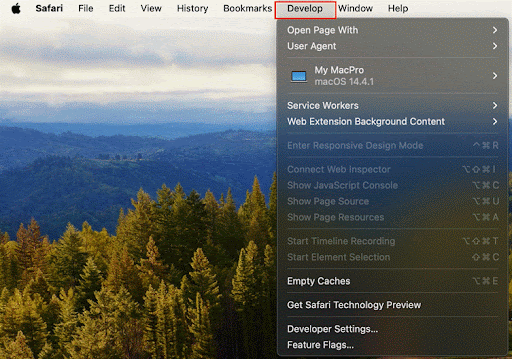
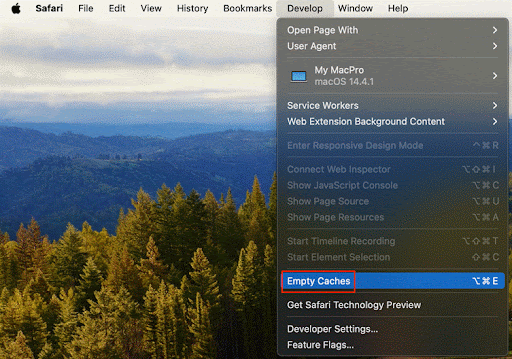
2. Scroll down and click on Empty Caches.
For Chrome:
1. Open Finder, press Command + Shift + G.
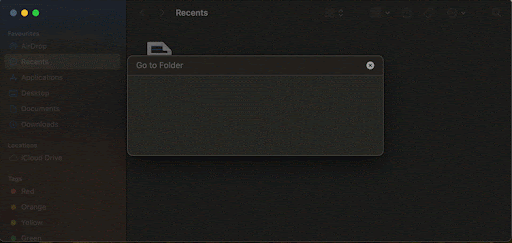
2. Type in: ~/Library/Application Support/Google/Chrome/Default.
Remove the WebRTC Logs folder, or whatever is inside the WebRTC cache folder.
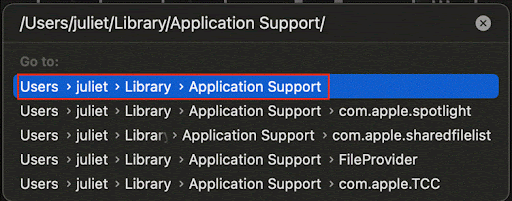
3. Remove Old Audio Units and Driver Files
Corrupted or leftover audio unit plug-ins slow down audio routing. One of the most ignored causes for microphone lag and background hiss during calls.
Here are the steps to remove old audio units and driver files on Mac
1. Open Finder> Press Command + Shift + G.
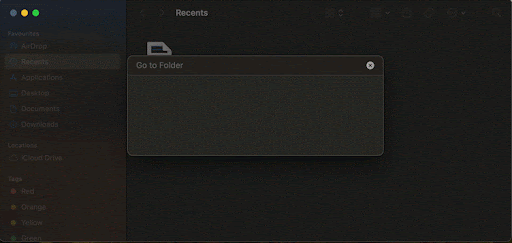
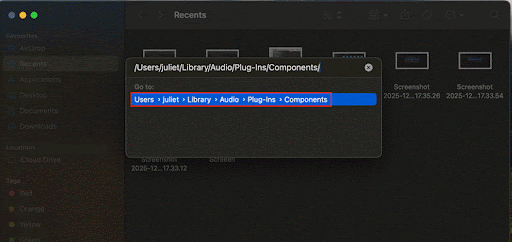
2. Go to: /Library/Audio/Plug-Ins/Components/.
Look for plug-ins you no longer use—many come from old DAWs or trial versions. Move anything you don’t need into the Trash.
3. Check /Library/Audio/Plug-Ins/HAL/ to remove any outdated audio drivers.
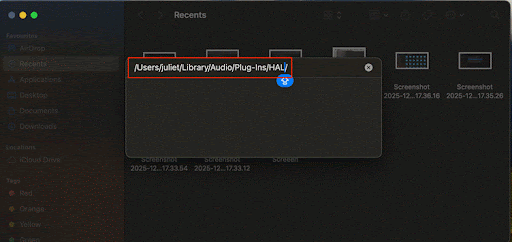
4. Restart your Mac.
A fresh Core Audio session often improves mic responsiveness immediately.
Delete Large WindowServer Logs
WindowServer is everything displayed on your screen. If the logs grow too large, your Mac struggles with animations, camera previews, and screen sharing.
Here’s how to remove large WindowServer Logs on Mac:
1. Open Finder> Command + Shift + G.
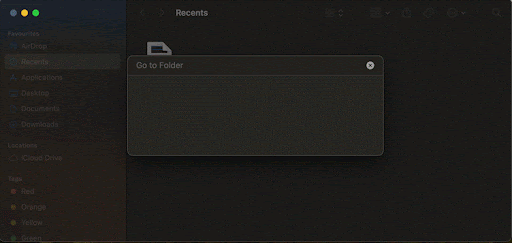
2. Enter: /private/var/log/ and look for files like: windowserver.log, windowserver.log.0.gz.
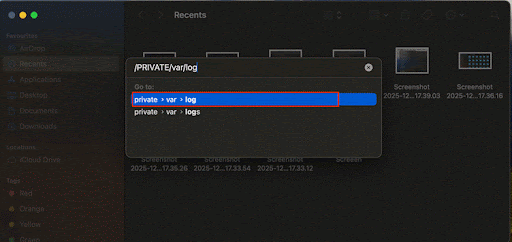
3. Delete older versions or large log files, then restart your Mac.
If you regularly share your screen during calls, deleting the contents of this folder can help to minimize jitter.
Preventing Future Slowdowns
After you’re done with cleaning up your Mac, use these habits to keep it clean:
Schedule Regular Cleanups: Do a cleaning scan at least once a month. This will catch any hidden files that may be getting out of control and causing major slowdowns.
Monitor Storage: Open About This Mac > click on Storage. You can then view what’s taking up space, and in most macOS updates, there are optimizations to delete old downloads or clear app caches.
Update Apps and macOS: Software updates often bring performance improvements and bug fixes, so it’s essential to ensure you’re running the latest version of the system software.
Close Unused Apps: Just before starting a video call, close all the apps you do not require. This will free up memory and processor utilization for the app related to your call.
Final Words
Your Mac doesn’t need to struggle during VoIP calls. Hidden files are the problem, and clearing them out will give your Mac the pep it needs. Whether you decide to do a manual deep clean or use software, the most important thing is that you do something now.
Read More : AI + VoIP Breakdown: How to Work with New-age Tech Stack?